This article covers two situations:
- The software does not find the controller (first start, new controller, new PC).
- The connection drops during work (“Connection lost”, ucsError, timeouts, axis bumps).
| The controller is not detected at all. | The connection drops during work. |
Part A – The controller is not detected
1Check the basics
- The controller is powered and the Ethernet link LEDs on the controller and the PC are lit.
- Use a good-quality, shielded Ethernet cable. Swap it for another one if in doubt.
- Use a cable connection. WiFi is not stable enough for controlling a machine.
- For the first tests, connect the controller directly to the PC’s built-in Ethernet port, without a switch or router.
2Network addressing
After power-up the controller first tries to get an IP address from a DHCP server (router). If there is none, after about one minute it falls back to the default address 10.1.1.2. Allow for this delay after switching on when connected directly.
| Connection | PC network adapter | Controller address |
|---|---|---|
| Direct (recommended) | Static IP 10.1.1.1Mask 255.255.255.0 |
10.1.1.2 (after ~1 min) |
| Through a router | Automatic (DHCP) | Assigned by the router |
The controller has no setting for a fixed IP address of its own. If you need it at a fixed address, add a DHCP reservation in the router for the controller’s MAC address.
To check the connection, open a command prompt and run (or use the address assigned by your router):
ping 10.1.1.2
3Ping works, but the software does not see the controller
The controller is on the network, but it runs firmware for different software.
- In Mach, check that the CSMIO/IP plugin is installed and enabled (in Mach4: Configure › Control › Plugins). If the plugin is missing from the list, reinstall the plugin package and check that it was installed into the correct Mach folder.
- Going back from Mach to simCNC also requires flashing the simCNC firmware.
Downloads and the firmware update guide: Firmware and plugins
4Firewall and antivirus
Windows Defender and other firewalls or antivirus software can block communication with the controller or the firmware uploader, especially on recent Windows 11 builds. Temporarily turn off the firewall to test. If that helps, add an exception for simCNC / Mach and the uploader rather than leaving the firewall off.
Part B – The connection drops during work
1First, find out when it happens
This is the most useful diagnostic clue:
| The connection drops… | Most likely cause | Go to |
|---|---|---|
| only while the spindle, drives, plasma or other power equipment are running | Electrical interference | Step 3 |
| also when the machine is idle or in E-stop | PC, Windows or network adapter | Steps 4–6 |
2Read the network connection diagnostics window
simCNC and Mach4 have a network diagnostics window that shows the quality of the connection.
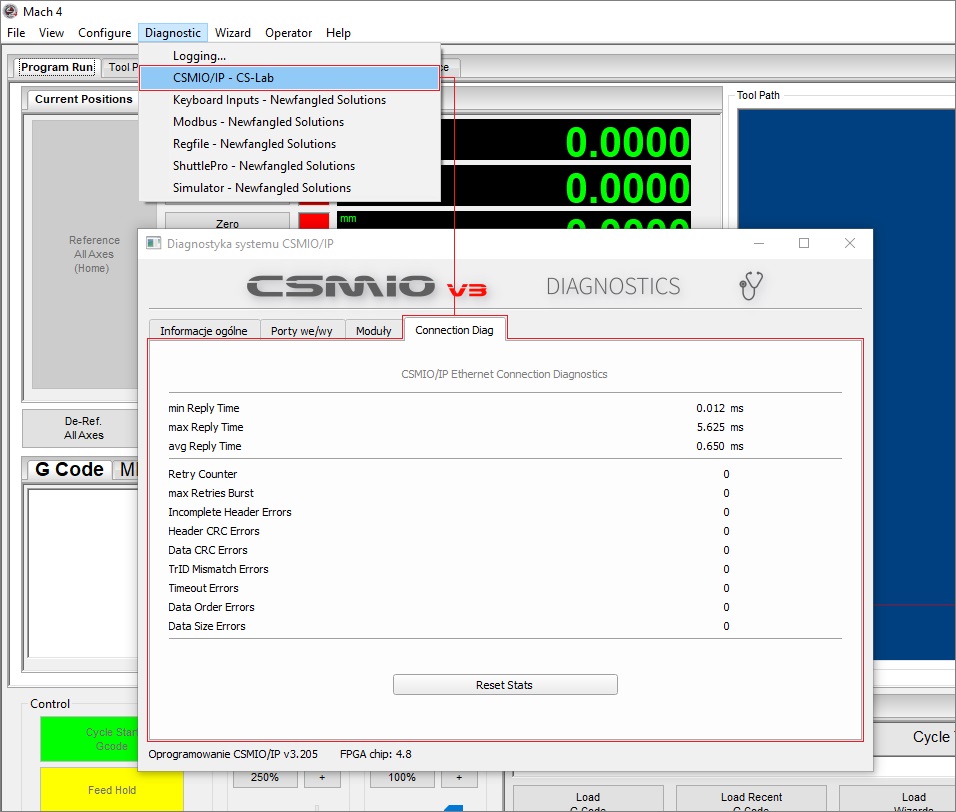
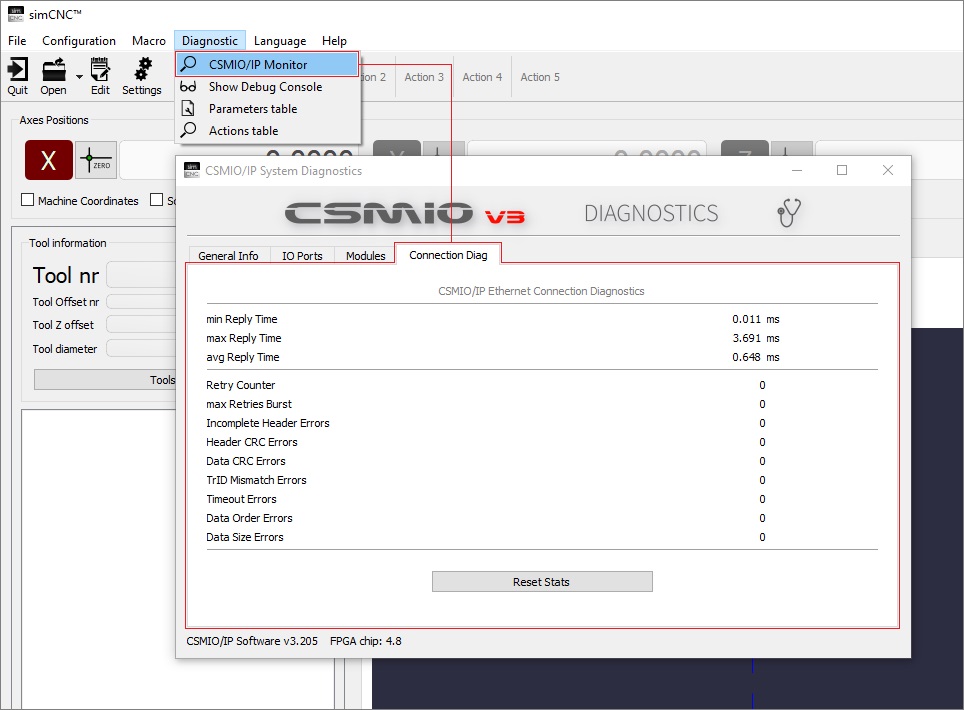
| Typical response time | 2–16 ms |
| Timeout (lost frame) | no response within 25 ms |
| Controller data buffer (CSMIO/IP-S, -A, -M) | 180 ms |
| Normal buffer level | 60–90 % |
| 5–7 consecutive timeouts | the buffer runs empty – a short axis bump |
| 15 consecutive timeouts (simCNC) | connection lost |
- A lower but smooth buffer level with no or very few retries usually means the PC is too slow or is being slowed down by power saving.
- A high but jagged buffer level with many retries usually means network interference.
- Many timeouts in one burst, with a good connection before and after, point to a sudden interruption – for example a driver briefly freezing Windows – rather than occasional lost packets.
3Electrical interference (EMI)
In most cases we have seen, intermittent drops were caused by noise from other equipment: VFDs (especially low-cost ones), servo drives, coolant pumps and plasma cutters.
- Fit ferrite clamp filters on the Ethernet cable, close to both ends:
- Use a shielded Ethernet cable and route it away from motor, spindle, VFD and plasma cables.
- Check the grounding of the cabinet, the VFD and the motor cable shields.
- Test with a different, good-quality 24 V DC power supply for the controller.
More on this: Are you having CNC electrical noise issues?
4Network adapter settings and drivers (Windows)
Power-saving features of the network adapter add delays and short interruptions that break the communication. Open Device Manager › Network adapters › (your adapter) › Properties:
- Power Management tab: untick “Allow the computer to turn off this device to save power”.
- Advanced tab: disable Energy-Efficient Ethernet (EEE), Green Ethernet, Power Saving Mode and any similar power-saving options.
simCNC checks these settings at start-up and shows a warning when Green Ethernet or EEE is enabled.
5The PC, Windows and BIOS
- Prepare the PC as described in Preparing a computer for the installation of simCNC, Mach3 and Mach4: the highest-performance power plan, minimum processor state 100 %, no sleep or standby.
- Keep Windows and the PC’s drivers up to date.
- Turn off or reconfigure energy-management applications (often pre-installed by the PC manufacturer) so that they do not limit performance.
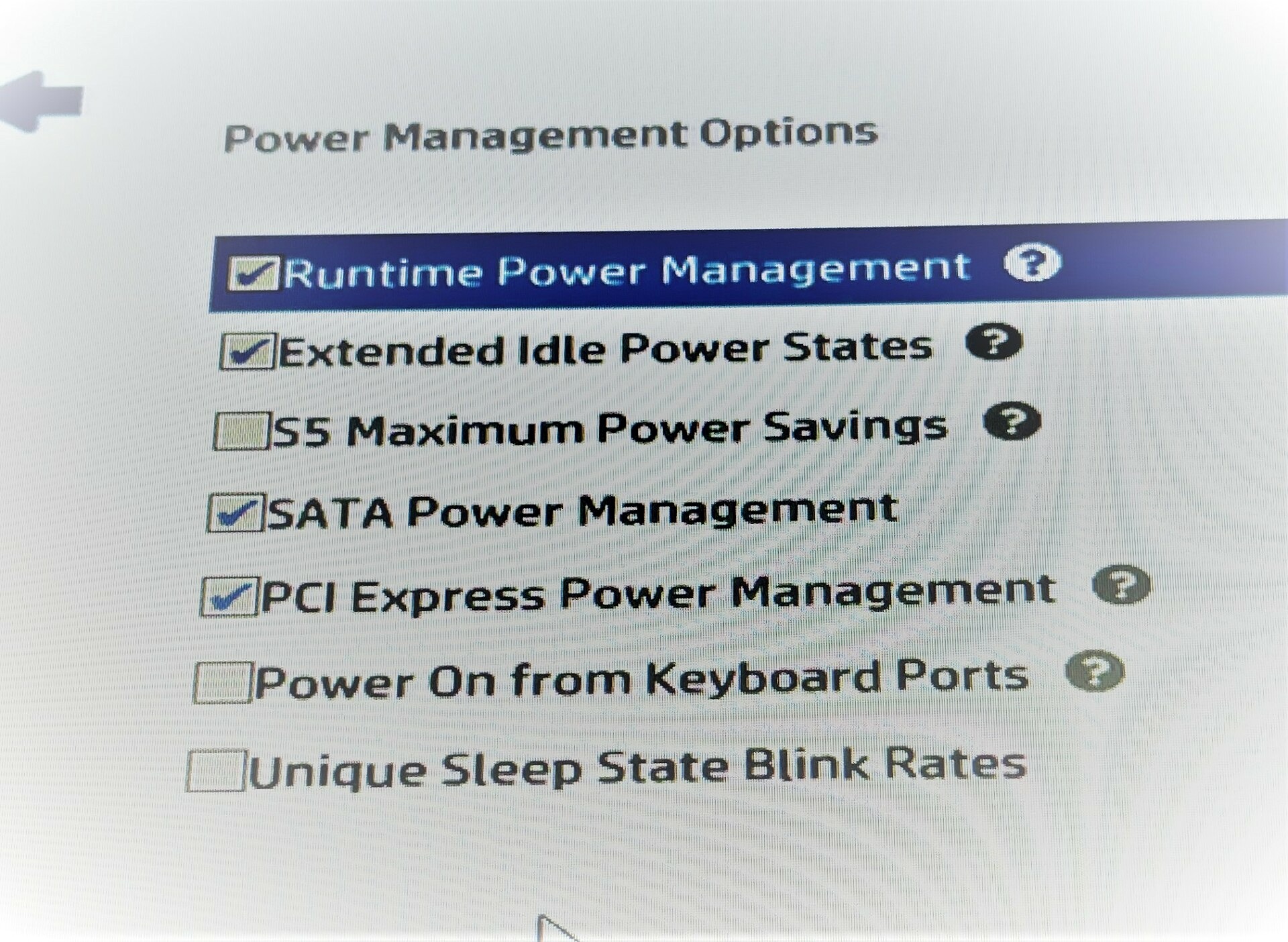
- Check the BIOS for options that slow down the CPU, throttle bandwidth, or put the network card or data bus to sleep periodically,
and turn them off. Such problems have been reported on HP and Dell computers. Example of the settings that had to be turned off on an HP computer:
- Laptops and some low-cost mini PCs have power-saving mechanisms that can interfere with low-latency communication. Many work fine, but this depends on the model. Most often, connection problems are caused by laptop power-saving algorithms.
- If the problem started suddenly on a machine that used to work, check what changed: a Windows update, a new PC, a new driver, or new network equipment.
- Test with a different PC. It is the quickest way to tell whether the PC is the cause.
6Switches, routers and WiFi
If the controller is connected through a switch or router, test with a direct connection to the PC’s built-in Ethernet port (see Part A, step 2), or with a different switch. Do not use WiFi.
7Mach3-specific notes
- Very large G-code files can make Mach3 slow to respond while it generates the toolpath preview. Try turning off the 3D toolpath preview.
- Additional Mach3 plugins and custom screens can also affect timing. Test without them.
- Mach3 is no longer developed, so there are no new CSMIO/IP firmware versions for Mach3.
Still not solved? What to send to support
- Controller model and serial number – we can also check whether your controller’s hardware revision is up to date.
- Software and version (simCNC version, or Mach3/Mach4 version and build) and the controller’s firmware version.
- Windows version, PC model, and network adapter model and driver version.
- How the controller is connected (direct or through a switch; built-in or USB network adapter).
- When the connection is lost: at start-up, while idle, only when running, or only with the spindle or plasma on.
- A screenshot of the error message and of the network diagnostics window.
- What you have already checked from this article.
- For simCNC: your profile backup, including the debug files.
Was this article helpful?
That’s Great!
Thank you for your feedback
Sorry! We couldn't be helpful
Thank you for your feedback
Feedback sent
We appreciate your effort and will try to fix the article